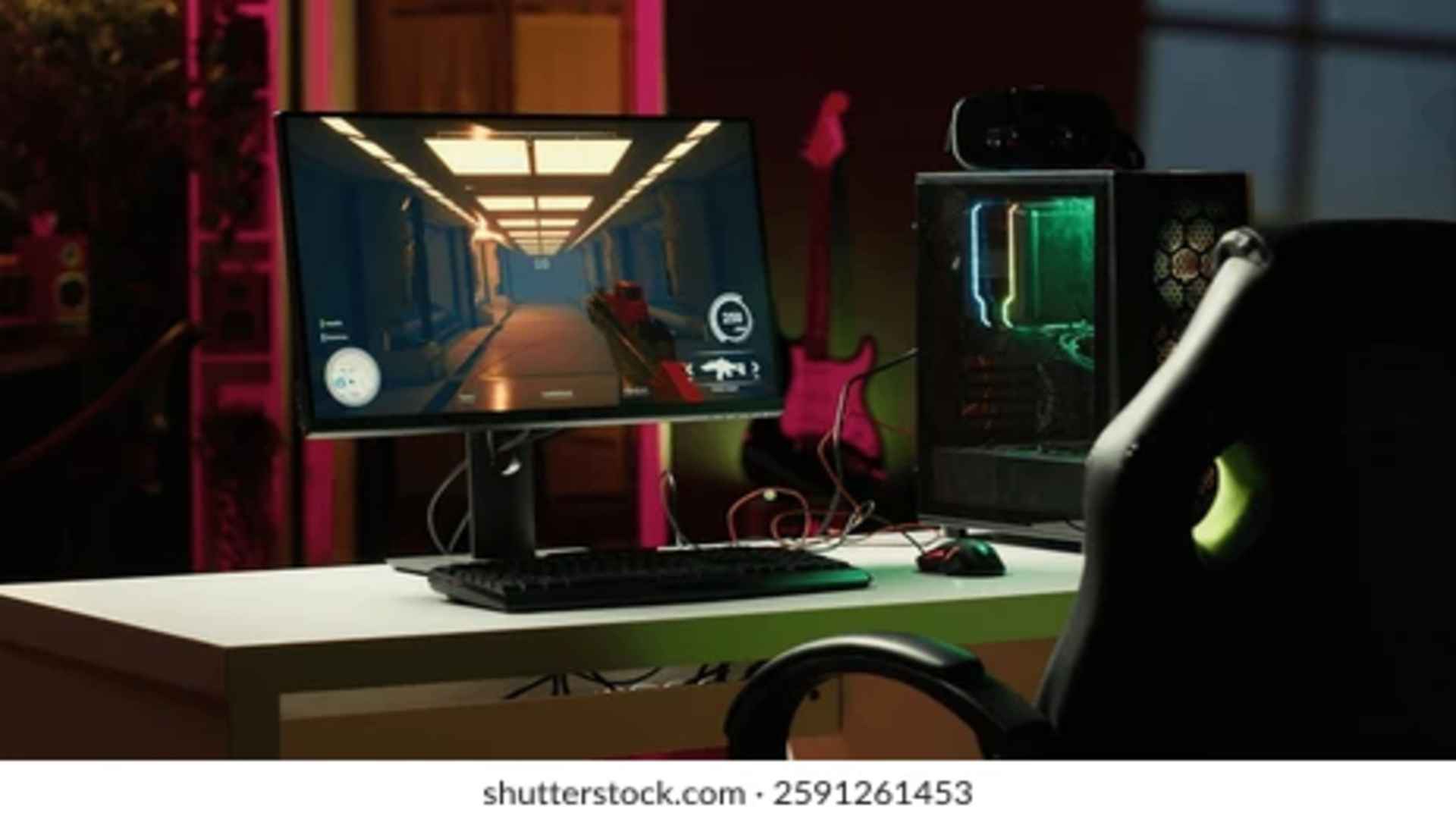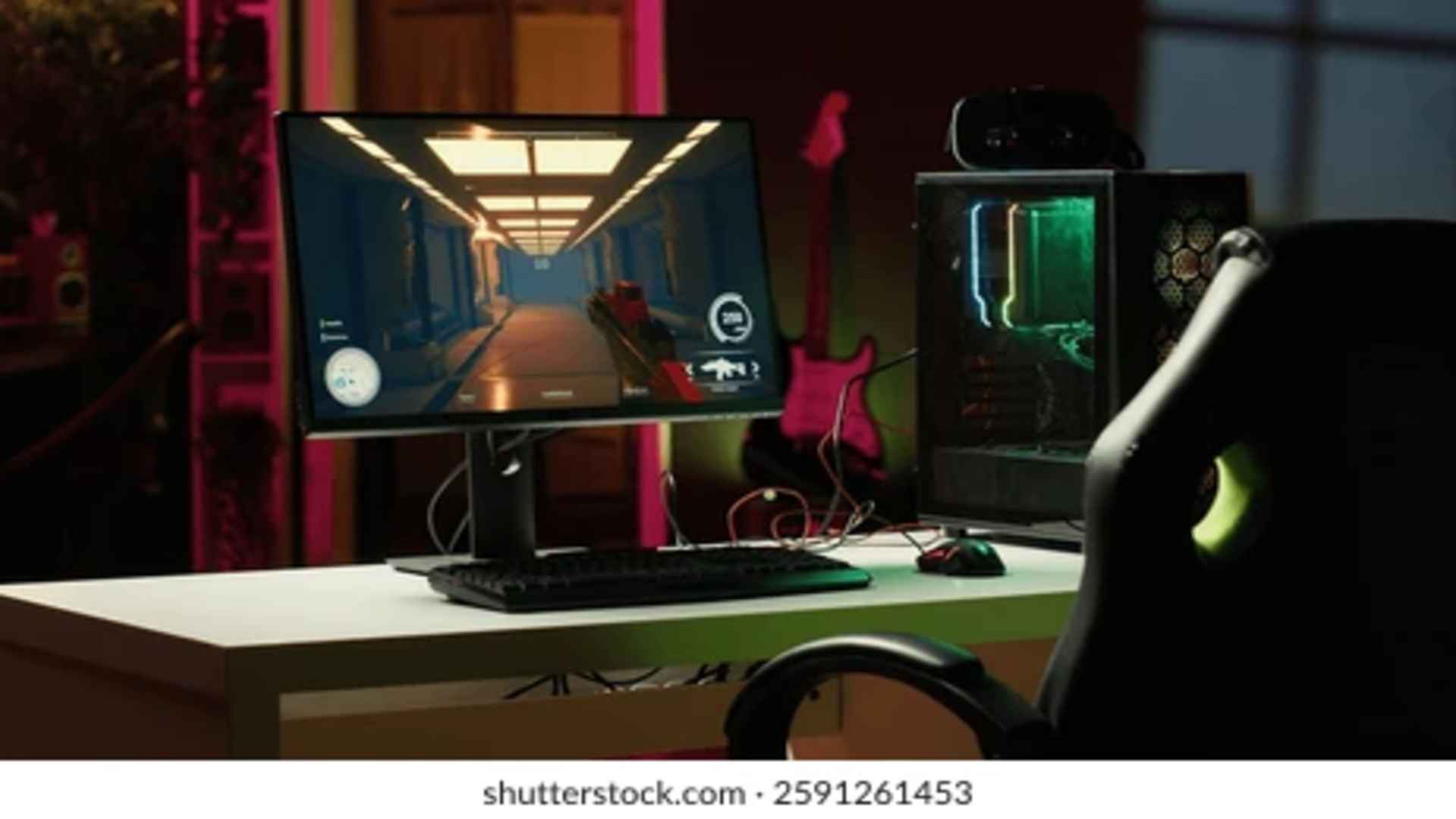
Monitoring graphics card hardware metrics is essential for maintaining system longevity and optimal performance during demanding gaming sessions. Modern GPUs are designed to push demanding visual fidelity, but higher workloads naturally lead to an increase in thermal output. Understanding ideal operating conditions helps PC enthusiasts prevent thermal throttling and maintain steady frame rates across demanding titles.
Understanding Ideal Operating Temperatures
Under heavy graphical loads, a typical graphics card operates safely between 65°C and 85°C. Staying within this window ensures high efficiency without subjecting hardware components to unnecessary heat stress. While minor spikes occur during intensive scenes, staying below the upper limit protects the silicon over long play sessions.
Recognizing Maximum Safe Limits and Throttling
Most modern GPUs feature built-in protective features that trigger when thermal thresholds near 85°C to 90°C. Exceeding these thermal limits forces the card to reduce clock speeds automatically to lower heat production. Keeping up with daily gaming news often reveals how software updates and newer engine demands can push hardware closer to these upper temperature boundaries.
Optimizing Airflow Inside the PC Case
Maintaining clear airflow pathways within your computer chassis is one of the most effective ways to lower temperatures. Positioning intake fans at the front and exhaust fans at the top or rear ensures a continuous supply of cool air. Proper cable management also prevents air blockages near the graphics card intake fans.
Adjusting Fan Curves and Software Settings
Using dedicated hardware utility software allows users to customize fan speed profiles according to real-time temperature changes. Setting a more aggressive fan curve keeps heat levels down before heavy thermal accumulation takes place. Additionally, capping maximum frame rates or enabling v-sync reduces unnecessary workload on the graphics processor.
Routine Physical Maintenance and Thermal Care
Dust accumulation inside fans and heatsink fins drastically hinders cooling efficiency over time. Cleaning component surfaces with compressed air every few months restores proper thermal performance. For older graphics cards, replacing dried-out thermal paste between the GPU die and heat sink can yield substantial temperature improvements.